 WinkNotesHelp
Add WinkNotes MCP to MiniMax Code
Follow the steps below to connect WinkNotes to MiniMax Code.
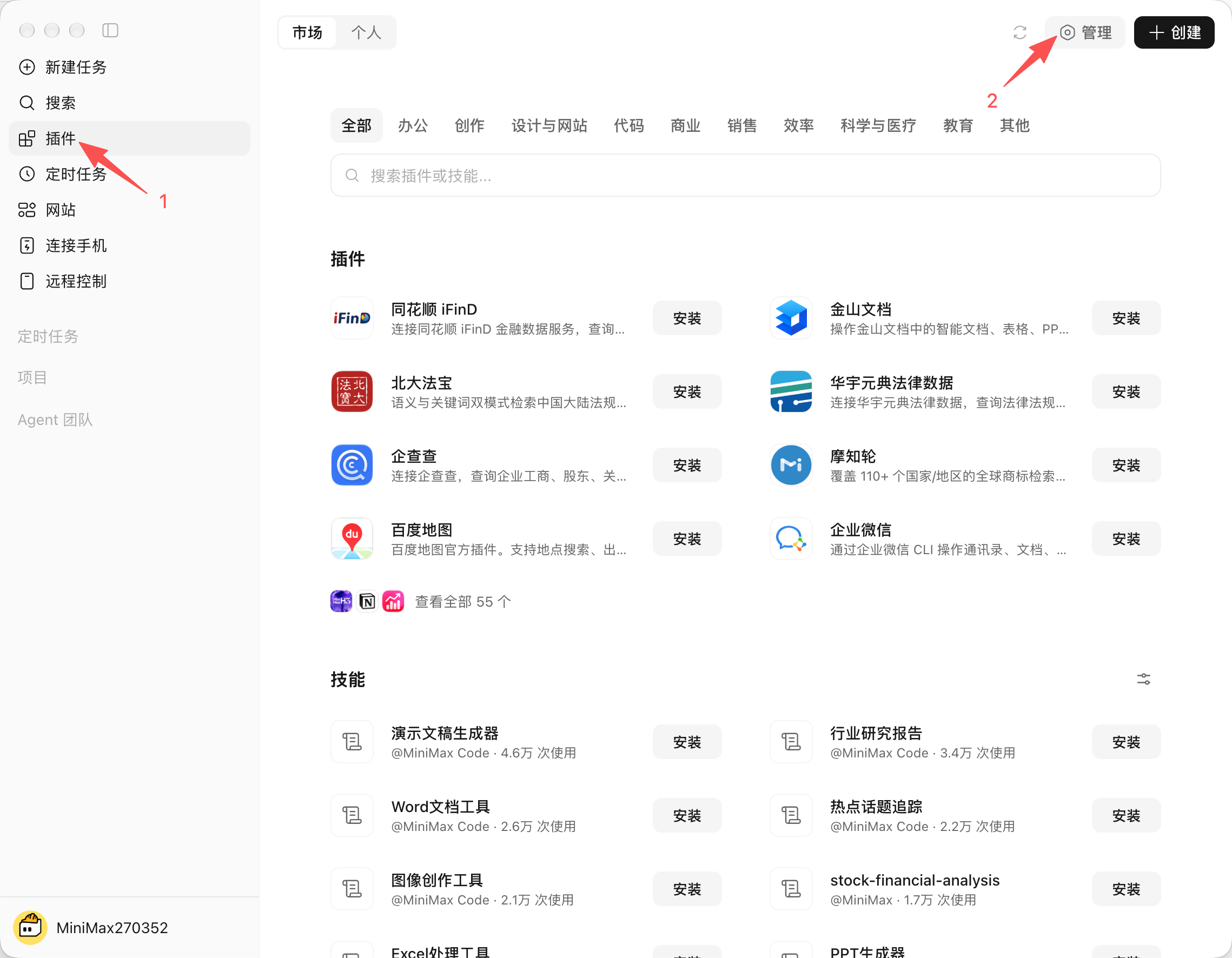
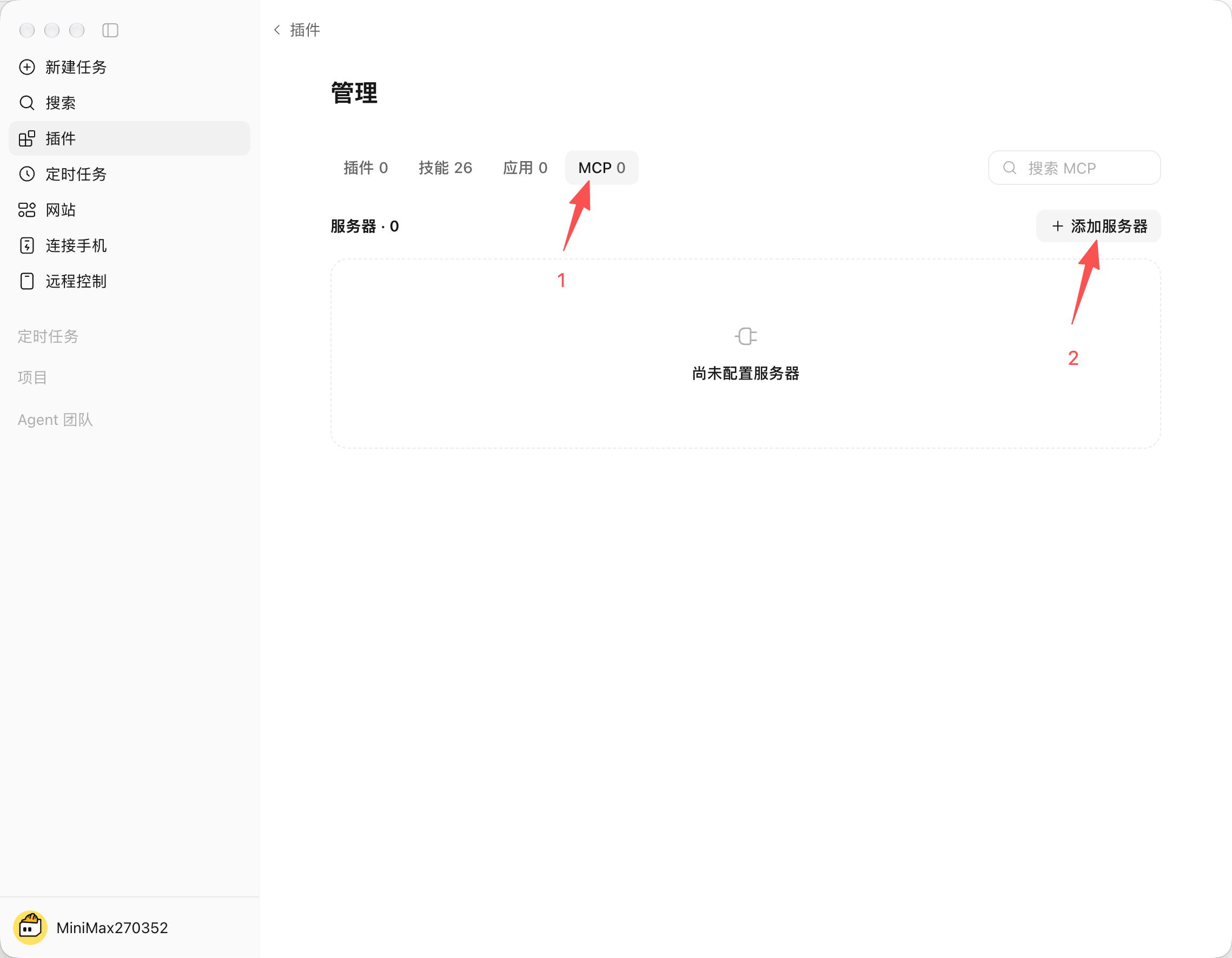
Tap Plugins, then tap Manage.
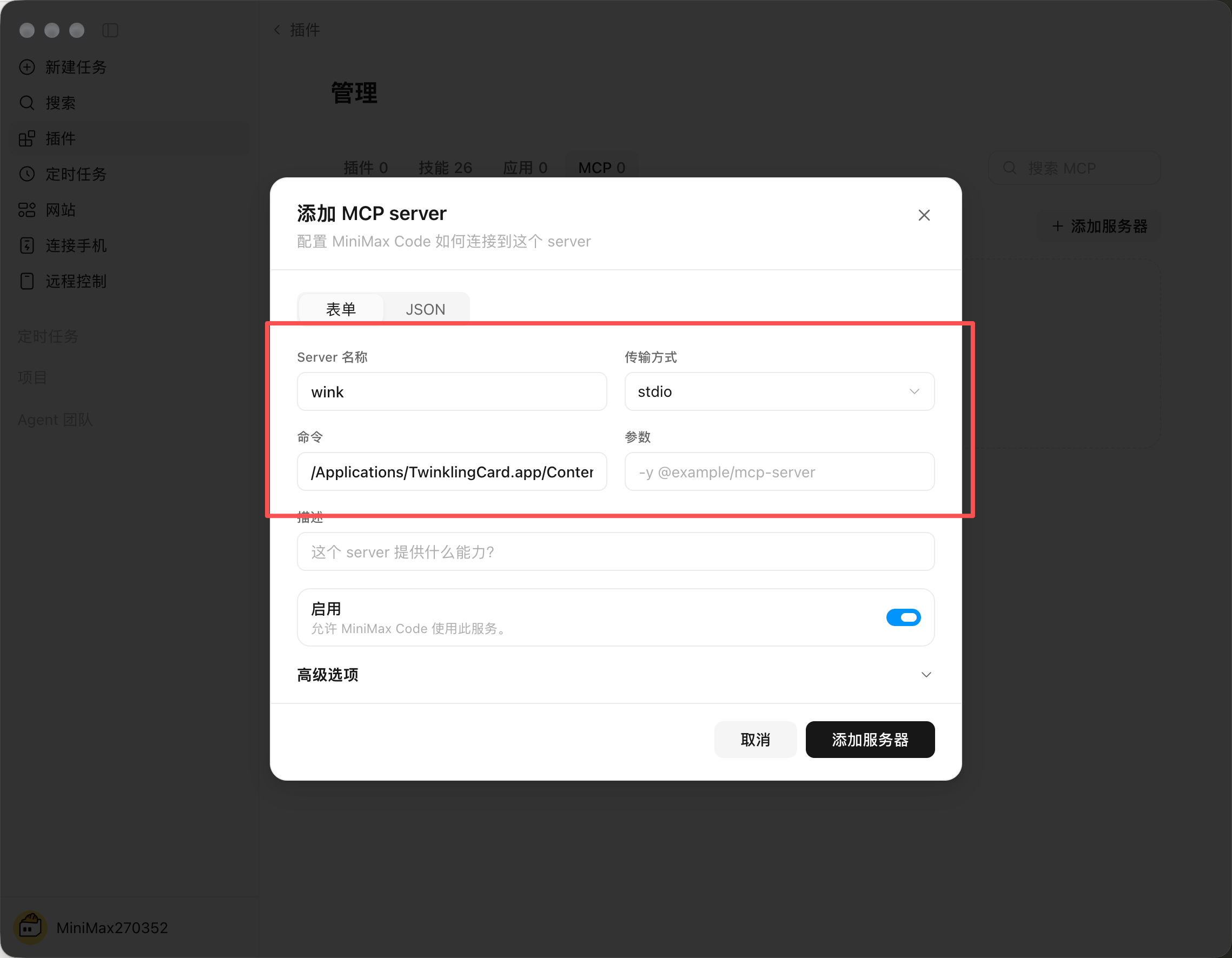
Name: wink
Type: stdio
Command: /Applications/TwinklingCard.app/Contents/MacOS/wink-mcp
Then tap Add server.
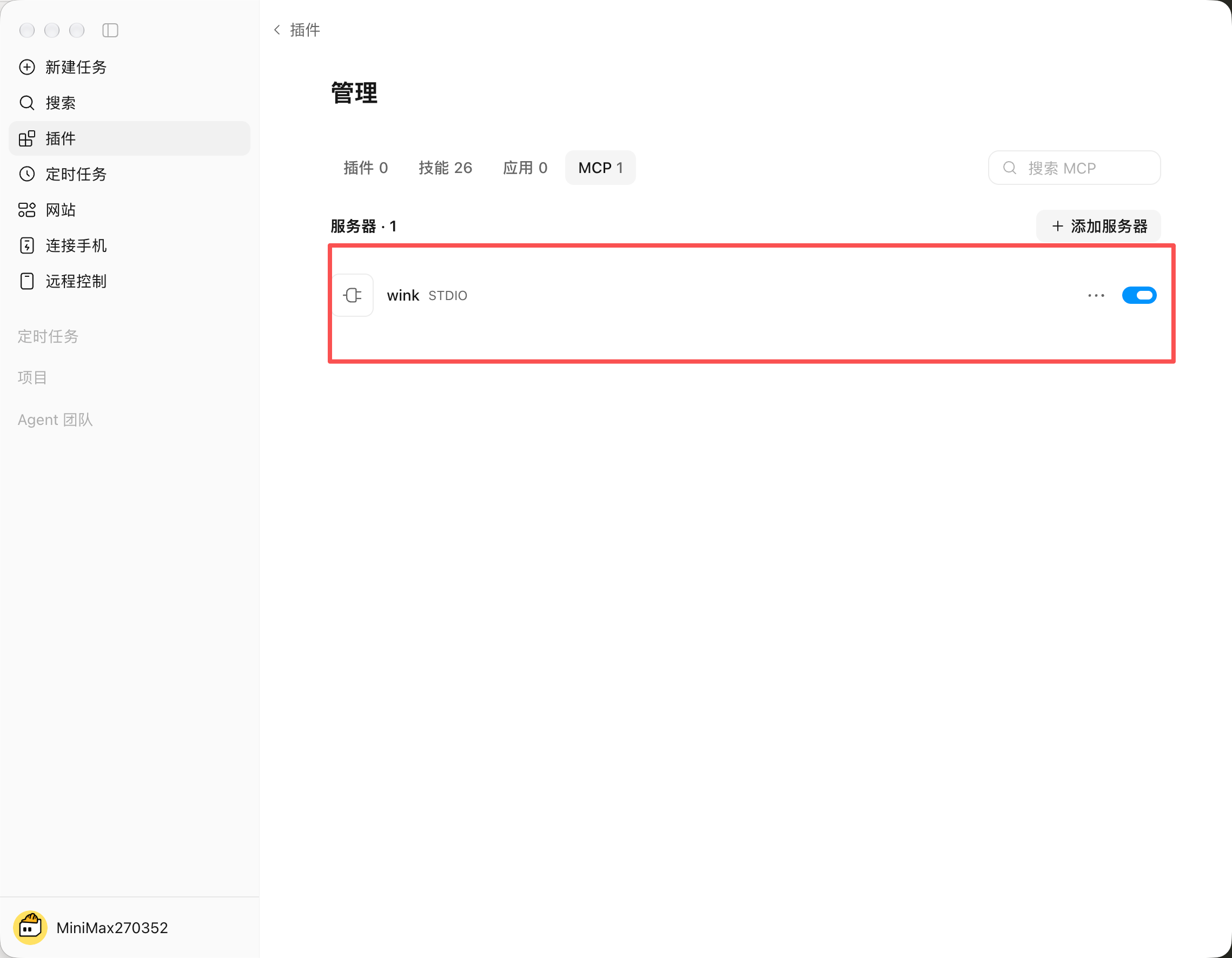
You should see wink as active.
⚠️ Note: quit MiniMax Code and reopen it.
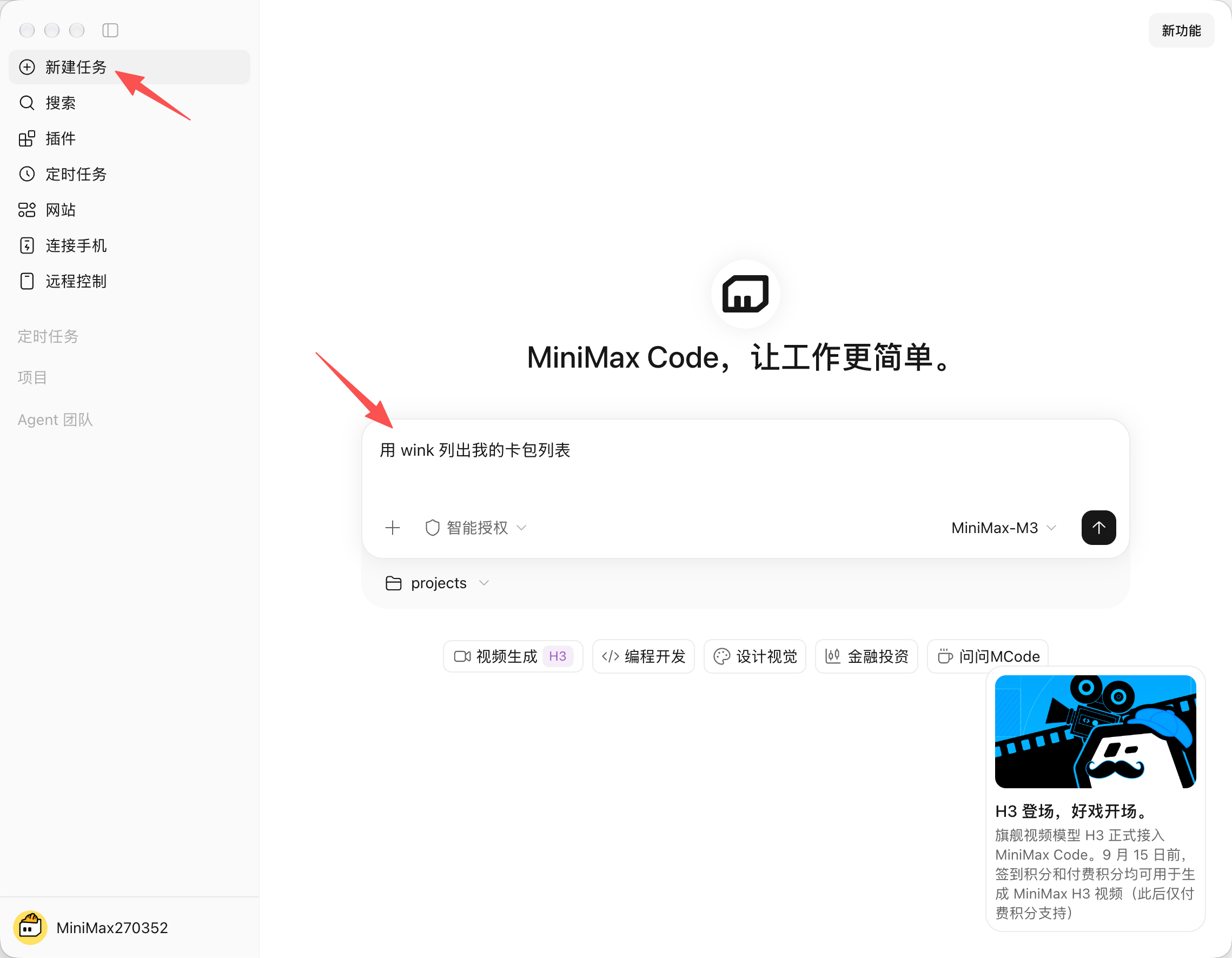
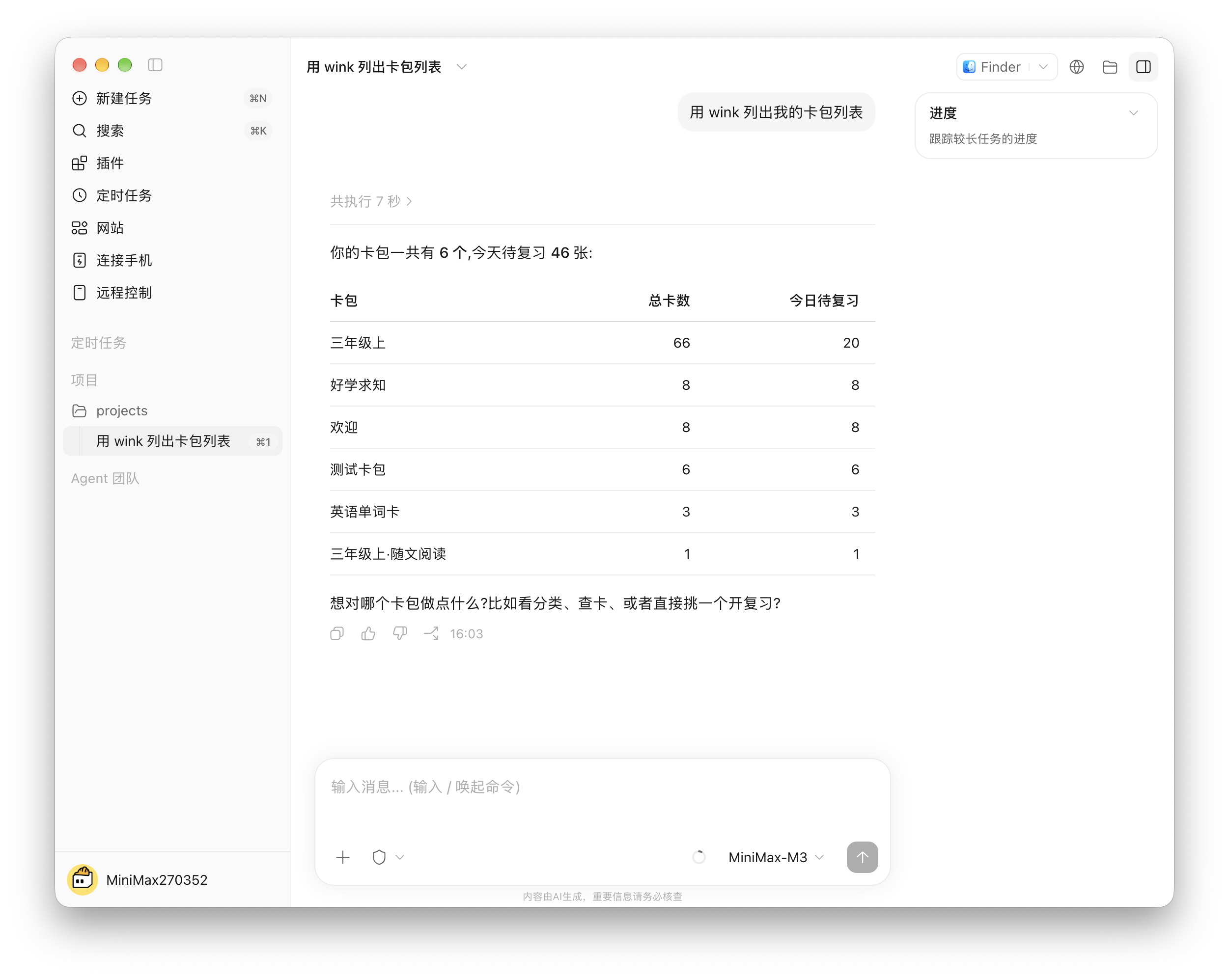
New task
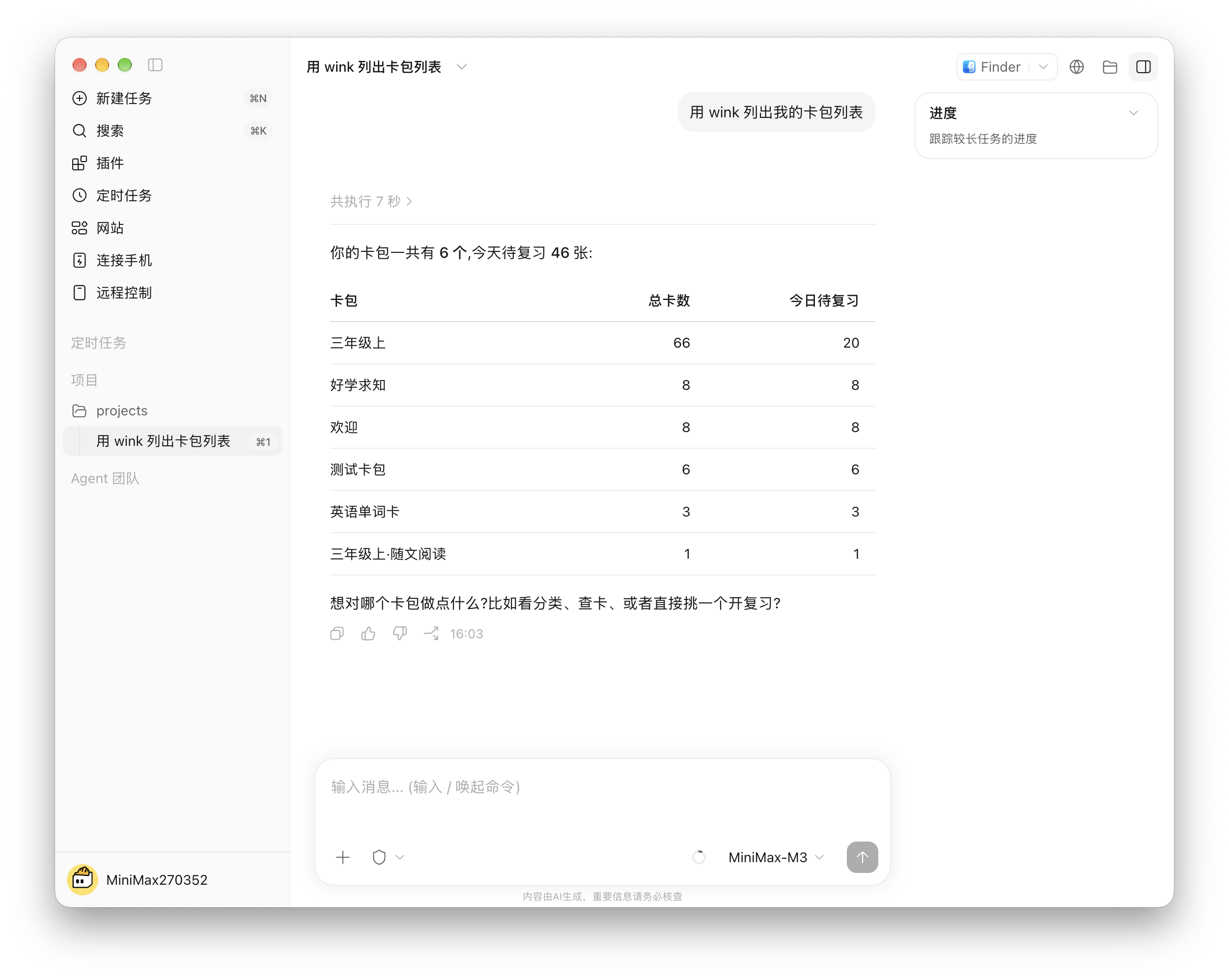
Start the first prompt with “using wink to …”. Once the session has picked up wink, you can leave it out.
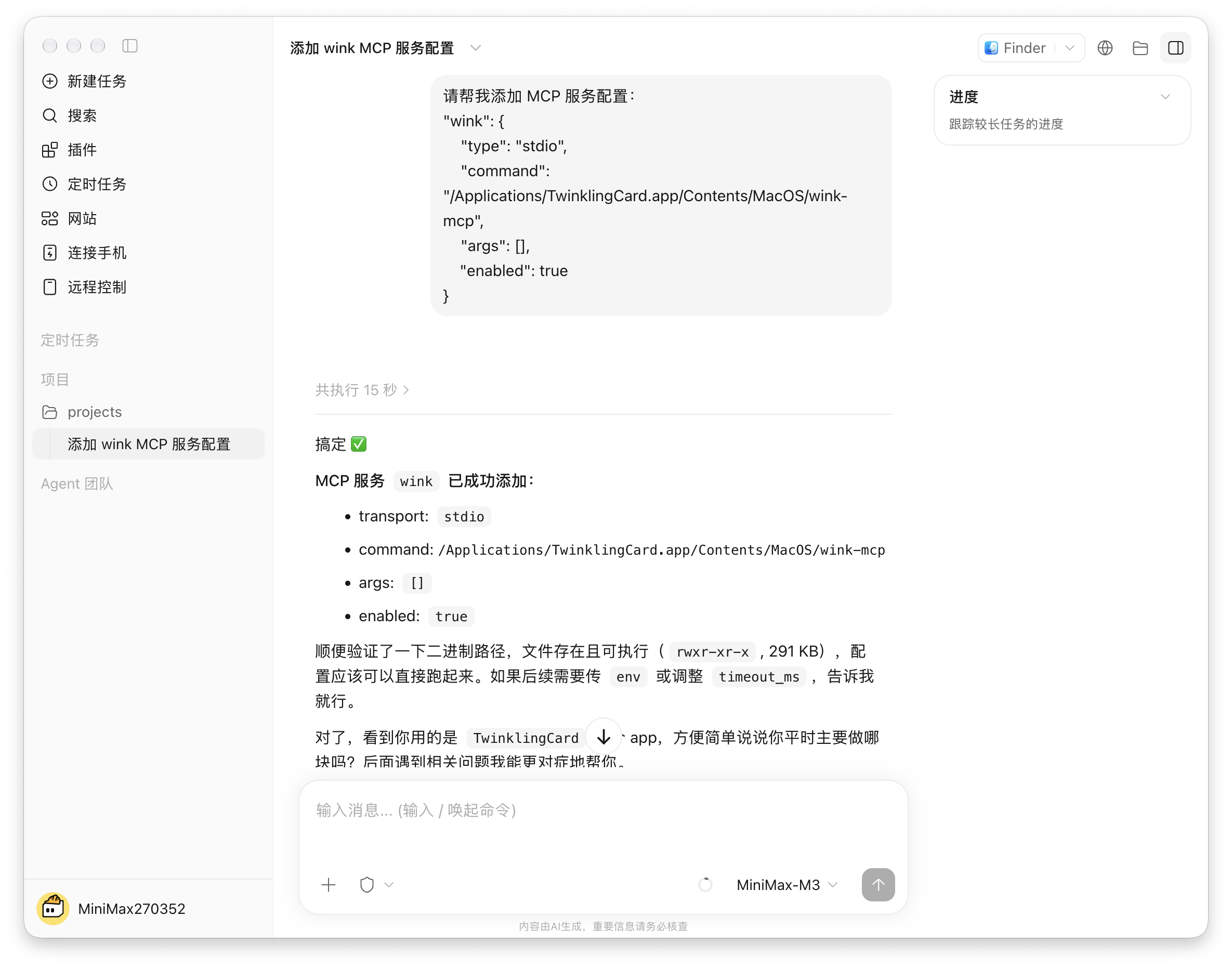
Add in chat
Open a new “New task” session and paste:
Please add this MCP server configuration:
"wink": {
    "type": "stdio",
    "command": "/Applications/TwinklingCard.app/Contents/MacOS/wink-mcp",
    "args": [],
    "enabled": true
}
After about 30–60 seconds of thinking, it should tell you it is done.
⚠️ Note: quit MiniMax Code and reopen it.
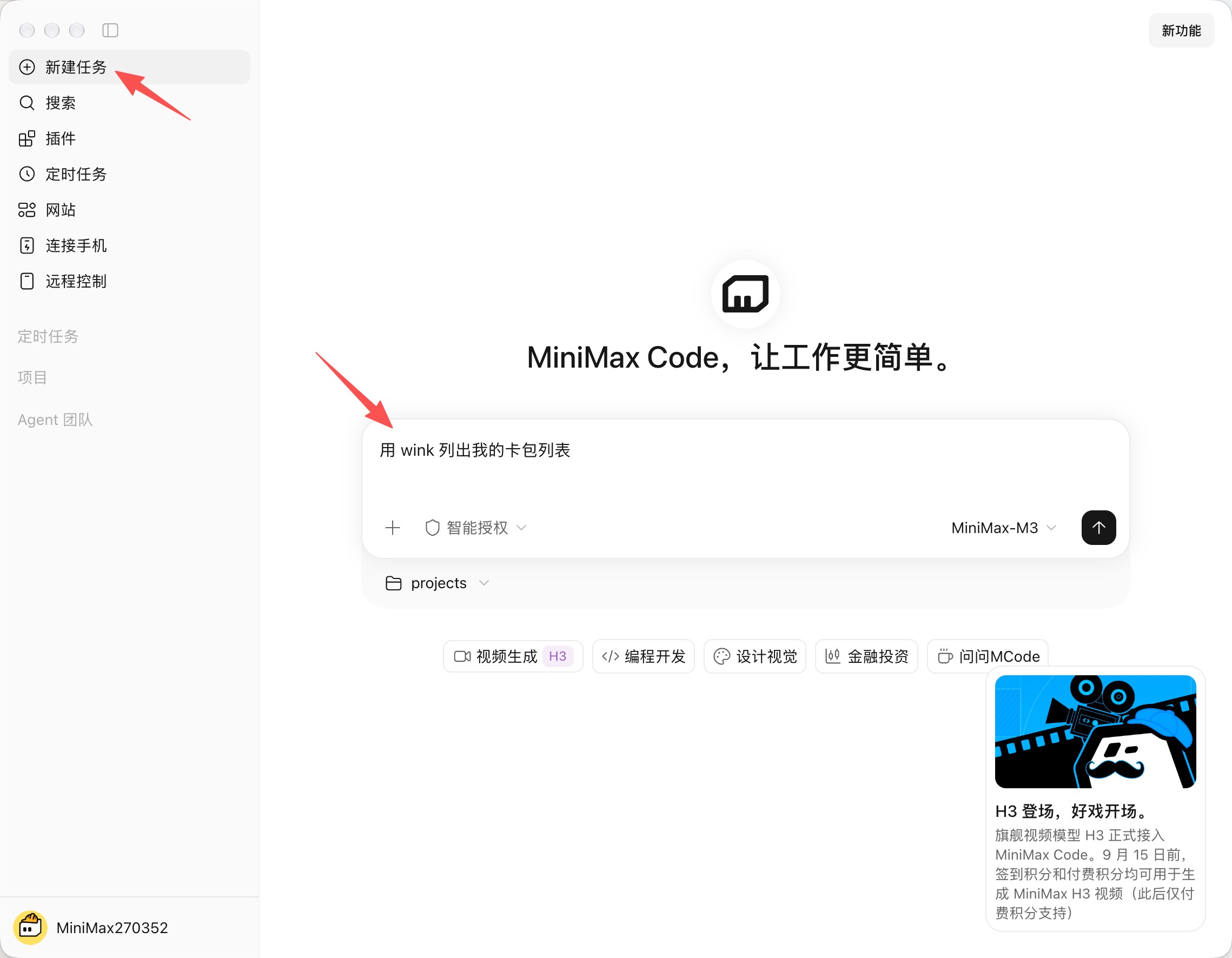
New task
Start the first prompt with “using wink to …”. Once the session has picked up wink, you can leave it out.